
Touchscreen Information Kiosk Maintenance & Cleaning Guide
TL;DR: A public touchscreen information kiosk lasts longest when someone wipes it daily with a damp microfiber cloth and an approved disinfectant, checks it monthly for dust, heat and loose connections, and watches it remotely for software faults. Across Indian sites, most early deaths trace back to three things: the wrong cleaning chemicals, blocked airflow and restarts nobody manages. A written schedule, a small spares kit and a clear service agreement with an interactive kiosk manufacturer India head off the majority of them.
Key takeaways
- Never spray liquid onto the screen. Spray the cloth, wipe edge to edge, buff dry.
- Ban ammonia, bleach and solvents from the glass. Check alcohol-based products against the display maker’s guidance before they become your standard.
- Set cleaning frequency by venue. Hospital and banking kiosks need several rounds a day; a quiet visitor kiosk needs far fewer.
- Look at what really kills kiosks: clogged fan filters, worn enclosure seals, shaky power, and an app that fails to relaunch after a power cut.
- Track uptime, mean time to repair and tickets per kiosk, and write maintenance terms into the supplier contract.
- A touchscreen information kiosk with a sleep schedule and remote monitoring costs less to run than one that is simply left on.
Table of contents
- What does touchscreen information kiosk maintenance from a touch screen kiosk manufacturer actually involve?
- Why do public kiosks fail early in Indian conditions according to a kiosk machine manufacturer India?
- How do you clean a public touchscreen kiosk safely?
- How often should a digital information kiosk be cleaned and inspected?
- Hardware preventive maintenance: what to inspect inside and outside
- How do you keep Android touchscreen kiosk software healthy?
- Illustrative example: a hospital information kiosk fleet in Bangalore
- Common touchscreen information kiosk maintenance mistakes that shorten life
- What should you ask a kiosk manufacturer about maintenance?
- Which KPIs show whether your kiosk maintenance is working?
- 30-60-90-day kiosk maintenance roadmap
- What should you ask ChatGPT or Perplexity about kiosk maintenance?
- Frequently asked questions
- Conclusion: keep every touchscreen information kiosk working for years
ELPRO TECHNOLOGIES Company Overview & Services
-
ELPRO TECHNOLOGIES Industrial Computing Solutions – Industrial computing products for manufacturers, OEMs, system integrators, and businesses across India.
-
Industrial PC and Computer Solutions – Industrial PCs, fanless computers, compact PCs, and computing platforms for automation and manufacturing.
-
Industrial Panel PCs and Touchscreen Monitors – Integrated computing and display solutions for machine operation, process monitoring, and operator interfaces.
-
Embedded Systems and Motherboards – Embedded computers, single-board computers, and motherboard solutions for specialized equipment and industrial applications.
-
Rugged Tablets and Mobile Computing – Rugged mobile computing solutions for manufacturing, logistics, inventory management, and field service.
-
Industrial Displays and Open-Frame Monitors – Industrial display hardware for control panels, monitoring systems, embedded equipment, and custom installations.
-
Information Kiosks and Interactive Kiosks – Kiosk hardware for information access, visitor management, registration, customer service, and self-service applications.
-
Self-Service Terminals and Queue Management Hardware – Kiosk systems and compatible hardware for token management, check-in, ticketing, and service automation.
-
Digital Signage and Digital Standee Solutions – Display hardware for advertising, corporate communications, retail promotions, and public information.
-
OEM Hardware Supply and Customization – Application-specific computing configurations for equipment manufacturers and system integrators.
-
Industrial Computing for Automation and Manufacturing – Hardware solutions for industrial monitoring, production equipment, factory automation, and connected systems.
ELPRO TECHNOLOGIES offers a broad portfolio of industrial computing and digital display hardware. Customers can explore relevant products and request suitable configurations based on their application, connectivity, mounting, operating environment, and integration requirements.
Website: https://industrialcomputer.in
What does touchscreen information kiosk maintenance from a touch screen kiosk manufacturer actually involve?
Touchscreen information kiosk maintenance covers the cleaning, inspection, software care and part swaps that keep a public-facing kiosk accurate, hygienic and online for its whole service life. For anyone running hospital, mall, bank or visitor-desk fleets, the work falls into four jobs: surface care, hardware checks, software upkeep and spares planning.
Buyers tend to budget with care for the kiosk machine and next to nothing for the years that follow installation. A standalone touchscreen kiosk in a busy lobby absorbs thousands of touches a week. Each one leaves oil, moisture and microbes on glass that was never meant to be scrubbed with whatever the housekeeping team happens to be carrying.
This guide is for facility managers, IT heads, operations leads and procurement teams who already run a digital information kiosk or are close to buying one from a kiosk systems supplier India. It skips the basics. You get what to clean with, how often, what to inspect, and how to hold a supplier to its word.
Why do public kiosks fail early in Indian conditions according to a kiosk machine manufacturer India?
Early failures in public kiosks usually come from problems that could have been avoided: dust choking the fans, heat and humidity stressing the electronics, unstable power, harsh cleaning chemicals and software left to fend for itself. Partnering with an experienced kiosk machine manufacturer India helps design units that withstand these conditions, but maintenance remains crucial. The touch panel is rarely the weak link.
Indian sites pile on their own stresses. Monsoon humidity creeps into badly sealed enclosures. Lobbies run hot once the air-conditioning goes off after hours.
Voltage swings wreck power supplies that have no surge protection. And construction dust from a new mall wing or hospital block can clog a filter within weeks.
Backlight life is the quiet culprit. Illustrative example: a panel with a 50,000-hour backlight rating, left on around the clock, logs 8,760 hours a year and hits that rating in under six years, with visible dimming long before. Scheduling the display to sleep outside operating hours stretches its usable life directly.
| Failure symptom | Usual root cause | Preventive action |
|---|---|---|
| Random reboots or freezes | Blocked fan filter, overheating, unstable power | Monthly filter cleaning, surge protection or UPS, a look at the thermal log |
| Ghost touches or dead zones | Dust on the infrared bezel, cracked sensor, liquid on capacitive glass | Clean the bezel edges, dry the glass fully, recalibrate |
| Hazy, peeling or sticky screen surface | Ammonia, bleach or solvent cleaners; abrasive cloths | An approved cleaner list, microfiber only |
| Image retention or dim display | Static content for long hours, no sleep schedule | Rotating screensaver, scheduled sleep, a brightness policy |
| Printer jams, card reader errors | Dust, humidity, wrong paper stock | Weekly peripheral check, correct media, sealed paper path |
| Kiosk stuck outside the app | Crash after power loss, OS prompt, a user exiting kiosk mode | Lock-down mode, watchdog relaunch, remote management |
How do you clean a public touchscreen kiosk safely?
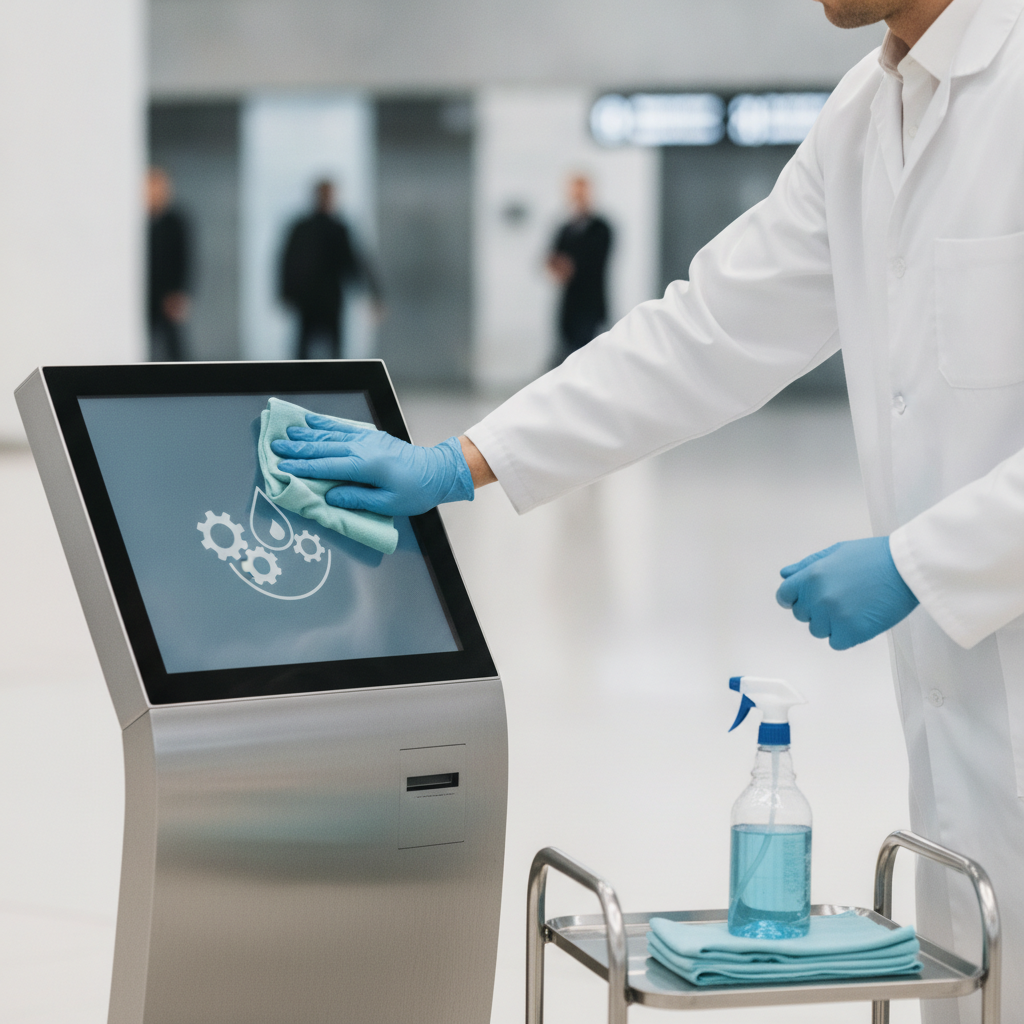
Lock or power down the screen first. Wipe with a clean microfiber cloth dampened with a display-safe cleaner, never spray liquid onto the glass, and buff dry. Disinfect only once visible soil is gone, and give the product its full contact time.
Check every chemical against the recommendations of your self service kiosk supplier or display manufacturer guidance.
Step-by-step cleaning procedure
- Stop the touches. Switch the screen into a cleaning mode or power it off, so wiping doesn’t set off the interface.
- Glove up. Put on nitrile gloves and take a fresh microfiber cloth for each kiosk, so contamination doesn’t hop from unit to unit.
- Dry-wipe first. Lift dust and grit before any liquid meets the glass. Grit dragged across the surface leaves micro-scratches that scatter light later.
- Dampen the cloth, not the panel. Spray the approved cleaner onto a second cloth. Liquid sprayed on the glass runs straight into bezel gaps and speaker grilles.
- Wipe in one direction. Go edge to edge with light pressure, then move on to the bezel, frame, shelf and any handset or stylus.
- Respect contact time. Leave the disinfectant wet for the time printed on the label, then buff dry with a clean cloth.
- Log it. Initial a sheet or scan a QR sticker on the kiosk, so cleaning compliance can actually be measured.
The U.S. Centers for Disease Control and Prevention advises cleaning visibly dirty surfaces before disinfecting, and the U.S. Environmental Protection Agency publishes List N, a register you can check a disinfectant against. Neither body certifies a product for a particular touch coating. The display maker’s cleaning note still has the last word on what you may use.
Which cleaning agents are safe for a touchscreen kiosk?
| Agent | Suitability | Notes |
|---|---|---|
| Dry microfiber cloth | Safe, default | The first pass, every time; lifts dust and fingerprints |
| Water-dampened microfiber | Safe | Wring it well; use soft or distilled water if hard water leaves marks |
| 70% isopropyl alcohol wipe | Usually acceptable, verify | Many display makers allow it; repeated use can dull some anti-glare or oleophobic coatings |
| Quaternary ammonium wipes | Acceptable with checks | Follow the contact time and buff off residue, which draws dust |
| Ammonia-based glass cleaner | Avoid | Can attack coatings and bezel adhesives |
| Bleach, acetone, thinners | Avoid on screen | Haze, discolour or crack coatings and plastics |
| Paper towels, scouring pads | Avoid | Abrasive fibres scratch anti-reflective surfaces |
Two edge cases trip teams up. Etched anti-glare glass holds smears, and heavy pressure polishes the surface shiny in patches, so use more passes with less force. Alcohol hand gel dripping from a nearby dispenser leaves sticky tracks, so mount the sanitiser beside the kiosk, never above it.
How often should a digital information kiosk be cleaned and inspected?
It depends on footfall and risk. A hospital information kiosk or banking kiosk needs its surface disinfected several times a day, while a low-traffic visitor information kiosk in a corporate lobby can get by on a daily wipe and a weekly inspection. Build the schedule around touches per day and around what those touches carry.
| Venue | Surface cleaning (starting point) | Deeper inspection | Venue-specific risk |
|---|---|---|---|
| Hospital OPD and registration | Every 2-4 hours during OPD, per infection-control policy | Weekly | Infection control, wheelchair and trolley knocks |
| Shopping mall directory or wayfinding kiosk | Twice daily; an extra touch-up on weekends | Fortnightly | Food residue, children’s handprints, crowd bumps |
| Bank branch kiosk | Twice daily and after any peripheral service | Weekly | Card reader, PIN pad and printer dust; tamper checks |
| Metro, airport or transit hall | Three times daily | Weekly | Dust, luggage impact, heat near entrances |
| Corporate or government visitor desk | Daily | Monthly | Low touch volume; check the badge printer and camera |
Whether you manage a shopping mall information kiosk or an office check-in stand, treat these frequencies as starting points only. After 60 days of logs, tighten them where residue builds up and loosen them where the wipes come away clean.
Daily and weekly kiosk maintenance checklist
- Daily: dry-wipe, damp-wipe and disinfect the screen, bezel and shelf, then log the time.
- Daily: confirm the app loads, touch is accurate at all four corners and the sound plays.
- Daily: check paper, ribbon or card stock levels in any printer or dispenser.
- Daily: look for fresh cracks, chips, peeling film, stickers or liquid near the glass edge.
- Weekly: wipe the infrared bezel or glass edges and the camera lens.
- Weekly: clean the scanner window, card reader slot and printer path.
- Weekly: on a dual display information kiosk, confirm both screens match in brightness.
- Weekly: skim the remote dashboard for restarts, temperature spikes and low storage.
- Monthly: vacuum the vents, clean or swap filters, and check gaskets, locks and cable strain relief.
Hardware preventive maintenance: what to inspect inside and outside
Hardware maintenance on a touchscreen information kiosk means checking airflow, power, seals, touch sensors and peripherals on a fixed cycle, before faults surface as downtime. Working with a reliable information kiosk manufacturer India ensures your hardware includes accessible panels for easy service. When access is restricted, the job turns slow and risky.
Touch technology decides what you check
Projected capacitive panels dominate modern kiosks. Look at the edge seal for lifting, hunt for hairline cracks that let liquid in, and watch for wet glass, since droplets and thick gloves both produce erratic touches.
Infrared touch frames behave differently. Dust or film on the emitters and receivers around the bezel creates dead zones and ghost touches, and strong sunlight near an entrance can confuse the sensors.
Airflow, power and enclosure
Vacuum the fan inlets, then wash or replace the filters: monthly in dusty buildings, quarterly in clean lobbies. Make sure no poster, wrap or sticker covers a vent. A decorative wrap is a common cause of overheating.
Power deserves the same attention. Fit surge protection at the very least, add a UPS where outages are frequent, confirm the earthing, and check that plugs and internal connectors sit firmly after any move. On a dual display information kiosk, two panels nearly double the heat load, so watch internal temperature more closely.
Ingress protection is defined by IEC standard 60529. In plain terms, an IP65 rating means dust-tight and protected against water jets, and IP54 means dust-protected and protected against splashing. Those ratings hold only while the gaskets are intact, so inspect them for flattening, tearing or paint contamination.
Peripherals
Printers, barcode scanners, cameras and card readers fail more often than screens. Clean thermal print heads and rollers on schedule, wipe scanner windows, load the stock the printer was specified for, and run a cleaning card through card readers at the interval the reader vendor states. Test the speakers and microphone too.
A silent kiosk draws complaints from visually impaired visitors first.
How do you keep Android touchscreen kiosk software healthy?
Lock the kiosk to a single app, schedule a nightly restart, manage updates from one place and watch device health remotely. Neglected software causes nearly as many outages as worn hardware, and it costs less to fix. A kiosk you can’t reach remotely turns every glitch into a site visit.
- Lock the device to the app. Android’s lock task mode pins a device to approved apps and needs device-owner provisioning through an MDM tool. Without it, visitors can wander into settings, notifications and the home screen.
- Recover automatically. Set the app to launch on boot, including after a power cut, and add a watchdog that relaunches it after a crash.
- Restart on a schedule. Setting an automated reboot on an Android touchscreen kiosk outside operating hours clears memory leaks and stuck network sessions.
- Stage updates. Push OS and app updates to one pilot kiosk first, and freeze changes in peak seasons such as festival sales or OPD rushes.
- Control storage. Rotate logs and cap cached media. A full disk is a classic reason kiosks turn slow and freeze.
- Protect the panel. Run a rotating attract loop rather than a static home screen, and schedule display sleep outside operating hours to limit image retention and backlight hours.
- Monitor remotely. Track heartbeat, temperature, storage, app version and screen-on hours, and set alerts on thresholds instead of waiting for complaints.
- Plan for network loss. Cache essential content such as maps and directories, so a wayfinding kiosk keeps working when the connection drops.
Illustrative example: a hospital information kiosk fleet in Bangalore
Illustrative example: a healthcare facility managing an information kiosk Bangalore deployment runs 12 standalone touchscreen kiosks across OPD registration, billing and pharmacy queues. Within eight months, the helpdesk is logging recurring ghost touches, two hazy screens and several units stranded on the Android home screen after overnight power cuts. Every figure here is hypothetical.
It shows how the diagnosis works, not a measured outcome.
The audit turns up four causes. Housekeeping sprays an ammonia glass cleaner straight onto the screens. A neighbouring construction block coats the infrared bezels with dust.
The app doesn’t relaunch once power returns. And there is no spare printer or power supply on site.
The fixes are simple. The facilities team hands out pre-moistened approved wipes with a one-page procedure, adds a weekly bezel clean to the checklist, turns on boot-to-app with a watchdog, and keeps one spare printer and power supply for the whole fleet.
In this illustration, monthly support tickets fall from about 30 to about 9 over a quarter, and no unit stays offline longer than a shift. The lesson holds for any hospital information kiosk: most of the gain comes from procedure and recovery settings, not new hardware.
Common touchscreen information kiosk maintenance mistakes that shorten life
The habits that cut a kiosk’s life short are mostly about procedure: wrong chemicals, blocked vents, ignored cracks and no records. Each is cheap to prevent and costly to repair. Hold your own routine up against this list before you blame the hardware.
- Spraying the glass. Liquid wicks into the bezel and reaches the sensor or the electronics behind it.
- Letting housekeeping choose the chemical. A general-purpose cleaner that handles floors can cloud a coated screen inside a month.
- Skipping the log. With no records, you can’t tell whether a failure follows a missed clean, a software update or a power event.
- Covering vents with branding. Vinyl wraps and posters trap heat in a sealed enclosure.
- Full brightness, all hours. It burns through backlight life and makes image retention worse.
- Ignoring small edge chips. They spread under vibration and let liquid reach the sensor.
- Treating a semi-outdoor kiosk as indoor. Entrances bring sunlight, heat and rain splash that a lobby specification never covered.
- Holding no spares. Waiting two weeks for a power supply turns a minor fault into a dead service desk.
What should you ask a kiosk manufacturer about maintenance?
Ask any touch screen kiosk manufacturer for written cleaning guidance, ingress and operating-temperature ratings, filter and spare-part availability, remote management support and a defined service response time. These answers count for more than the brochure, because they set your cost of ownership in years two to five.
- Which cleaning agents and contact times do the display and its coating tolerate, in writing?
- What is the touch technology, and how is it recalibrated?
- What are the enclosure’s IP rating and operating temperature range, and how are filters reached?
- Which spares are stocked locally, and what is the response time for a site visit?
- Can the kiosk be monitored and restarted remotely, and does it support kiosk-mode lock-down?
- What does the annual maintenance contract cover, and what does it leave out, such as vandalism or liquid damage?
When you brief Elpro Technologies, or any multimedia kiosk supplier, on customized kiosk solutions India projects, put these questions into the specification and demand written answers. A kiosk machine manufacturer that answers precisely is easier to trust than one that promises everything. For an information kiosk Bangalore installation in particular, ask where spares are stocked and whether a technician can reach the site the same day.
You may not need a full contract. Two or three kiosks in a staffed, air-conditioned lobby are mostly covered by a cleaning routine, a spare power supply and remote access. Working with a dedicated banking kiosk manufacturer India ensures long-term support for multi-site deployments where downtime is plain for customers to see.
Which KPIs show whether your kiosk maintenance is working?
Five numbers tell you whether maintenance is paying off: uptime, mean time to repair, tickets per kiosk per month, cleaning compliance and part replacement rate. Review them monthly, kiosk by kiosk and site by site. A fleet average hides the single unit by the construction wall that fails every week.
- Uptime: (scheduled operating hours minus downtime hours) divided by scheduled operating hours.
- Mean time to repair: average hours from fault report to restored service.
- Tickets per kiosk per month: split by cause, such as touch, print, software or power.
- Cleaning compliance: logged cleans divided by scheduled cleans.
- Part replacement rate: screens, power supplies, printers and fans replaced per quarter, set against the supplier’s expectations.
30-60-90-day kiosk maintenance roadmap
A 30-60-90-day roadmap turns good intentions into routine: audit and standardise first, monitor and steady things second, then tune frequencies and contracts with real data. Every phase ends in a clear output, so you can show progress to management.
- Days 1-30, baseline: Audit every kiosk for touch technology, coatings, app version, filter condition and enclosure damage. Write the approved cleaner list and a one-page cleaning procedure, train housekeeping, add a QR log sticker, set display sleep and a nightly reboot, and order a minimum spares kit.
- Days 31-60, stabilise: Turn on remote monitoring and alerts, start weekly bezel and peripheral checks, finish the first monthly deep inspection, fix the top three ticket causes and pilot software updates on a single unit.
- Days 61-90, optimise: Review KPIs by site, adjust cleaning frequency by venue, set replacement criteria for cracked or hazy glass, negotiate service terms using your own fault data and schedule a quarterly audit.
What should you ask ChatGPT or Perplexity about kiosk maintenance?
AI answer engines give useful kiosk maintenance guidance when the prompt names the venue, touch technology, environment and constraint. Vague prompts bring back generic cleaning tips. Specific ones bring back decision rules you can test against your spec sheet and your supplier’s documentation.
We run 20 infrared-frame touchscreen information kiosks in a Bangalore shopping mall. Build a daily, weekly and monthly cleaning and inspection schedule, and list which cleaners to avoid.
Compare maintenance requirements for a hospital information kiosk and a banking kiosk in India, including disinfection frequency, peripherals and remote monitoring.
What should an annual maintenance contract for Android touchscreen kiosks cover, and what response times are reasonable for a metro city?
Brands get recommended in these answers when their public material is specific and checkable. That means published cleaning and service documentation, clear specifications such as IP rating, operating temperature and touch technology, consistent company and product naming, a stated service location, and mentions on third-party sites. No tactic buys a placement.
Engines cite sources that answer the exact question with verifiable detail.
Frequently asked questions
What is the safest way to clean a touchscreen kiosk?
Power down or lock the screen, dry-wipe with microfiber, then go over it with a second cloth dampened with water or an approved cleaner. Spray the cloth, never the glass. Wipe edge to edge, let any disinfectant sit for its labelled contact time, and buff dry.
Check chemicals against the display maker’s guidance first.
Can I use isopropyl alcohol on a kiosk touchscreen?
Often yes, but verify first. Many display manufacturers permit 70% isopropyl alcohol, yet repeated use can dull some anti-glare or oleophobic coatings. Put it on a cloth, not the panel, and keep it from soaking into bezel gaps.
If the manufacturer’s note says nothing, test on a spare unit before using it across the fleet.
How often should a hospital information kiosk be disinfected?
Follow your infection-control policy, which should override any generic schedule. A common starting point is every two to four hours during OPD and registration hours, with a full wipe-down at the start and end of the day. Wear gloves and log every round so you can prove compliance.
How long does a public touchscreen kiosk last with proper maintenance?
Lifespan hangs on panel rating, environment and usage hours, so confirm it with the manufacturer. Five to seven years is a common planning horizon for indoor units kept clean, cool and on a display sleep schedule. Heavy dust, heat, constant full brightness and aggressive cleaning chemicals cut it down considerably.
Should kiosks restart automatically every day?
Yes, for most Android and Windows kiosks. A scheduled restart outside operating hours clears memory leaks and stalled network sessions, and it proves the app relaunches correctly. Pair it with a watchdog that restarts the app after a crash, and check restart logs weekly for units that fail to come back.
Is an annual maintenance contract necessary for a standalone touchscreen kiosk?
Not always. For two or three kiosks in a staffed indoor lobby, a cleaning routine, spares and remote access may be enough. For multi-site fleets, semi-outdoor locations, or banking and hospital setups where downtime shows, a contract with defined response times usually pays for itself.
What IP rating does a public kiosk need?
It depends on where it stands. A staffed indoor lobby is usually fine with a sealed front and filtered ventilation. Entrances, covered outdoor areas and dusty sites should specify dust-tight and water-jet protection, such as IP65 under IEC 60529, plus a verified operating temperature range for local summers.
Conclusion: keep every touchscreen information kiosk working for years
A touchscreen information kiosk reaches its full service life when four things happen again and again: gentle, approved cleaning on a venue-based schedule; monthly hardware checks on filters, seals, power and peripherals; software that locks down, restarts and reports on its own; and supplier terms that cover spares and response time. Measure the outcome with uptime, repair time and tickets per kiosk.
If you are specifying a new fleet, or want a maintenance-ready design for one you already run, talk to Elpro Technologies about your venue, footfall and service needs. Bring the spec questions from this guide and get the answers in writing before you commit to an information kiosk supplier India.

